
PSPA portrait files, and how to combine fall and spring portraits
PSPA is the common way school photographers hand over portraits for a yearbook: a folder of picture files plus a plain-text data file listing who is in each picture. Getting it right means asking the photographer for both parts, checking the names, grades and teachers in the data file, and checking a second set against the first before anyone builds a page.
What is PSPA, in plain language?
If your picture-day photographer sends portraits "for the yearbook," they usually arrive as a portrait package with two parts.
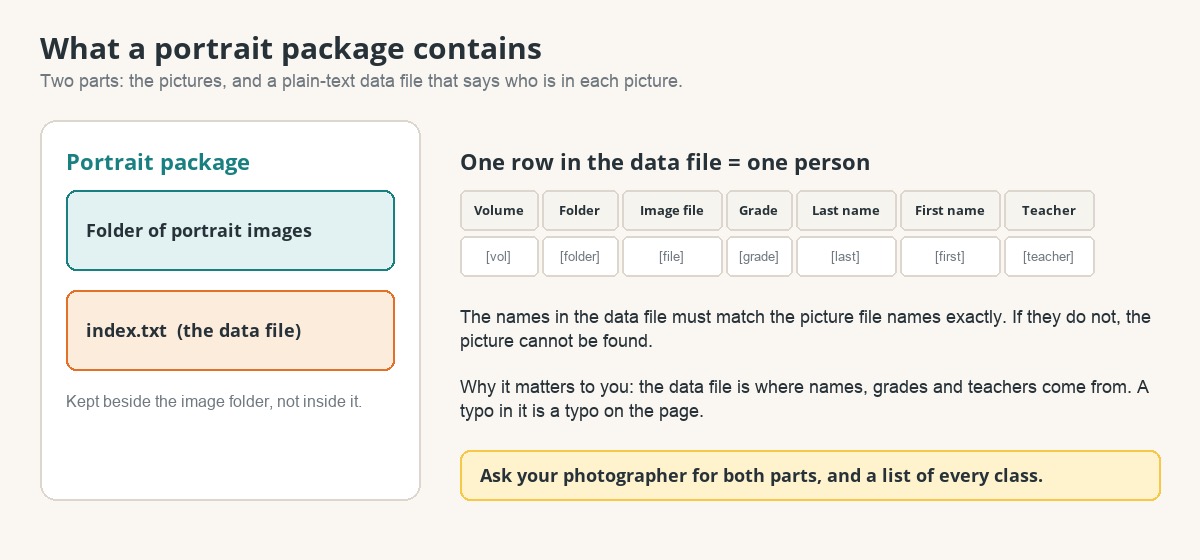
- The pictures. One image file per person, in a folder.
- The data file. A plain-text file with one row per person. Each row links a picture file to a name, a grade and a teacher.
Photographers usually deliver portraits this way even when they do not make your yearbook. The exact file name and layout vary, so ask for a sample file before picture day.
What should I ask my photographer for?
- Both parts of the package: the pictures and the data file.
- A complete class list with teacher names, so you can check the data file against it.
- Grade and teacher filled in for every person, including staff.
- Retakes and make-up day files, in the same format.
- Their own timeline: when files will reach you. The timeline says files tend to arrive around January, once retakes are done.
Store portrait files in a restricted folder that only the people who need them can open, never in a folder that anyone with the link can see. That is the most important rule on the portraits team. How to organize a PTA yearbook committee
How do names and grades line up?
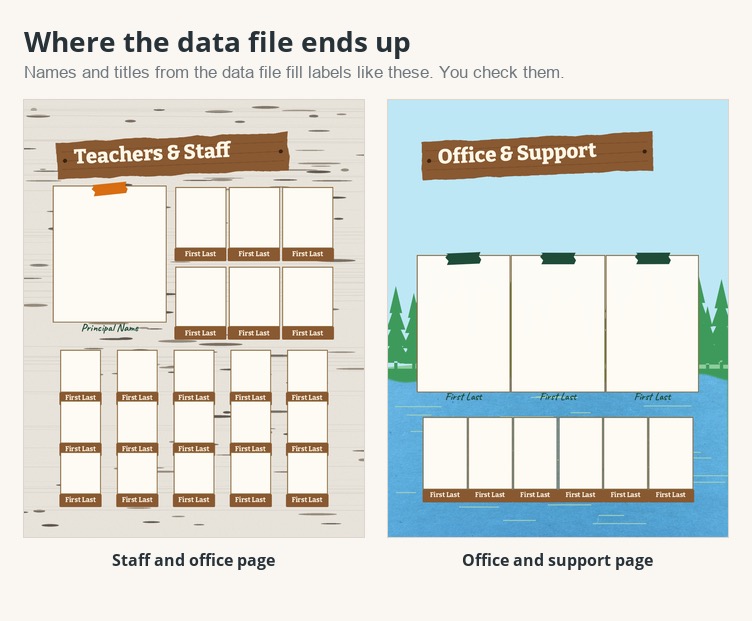
Everything on a portrait page, the name, the grade and the class, comes from the data file. One correction fixes everything that depends on it, and one typo repeats everywhere it is used.
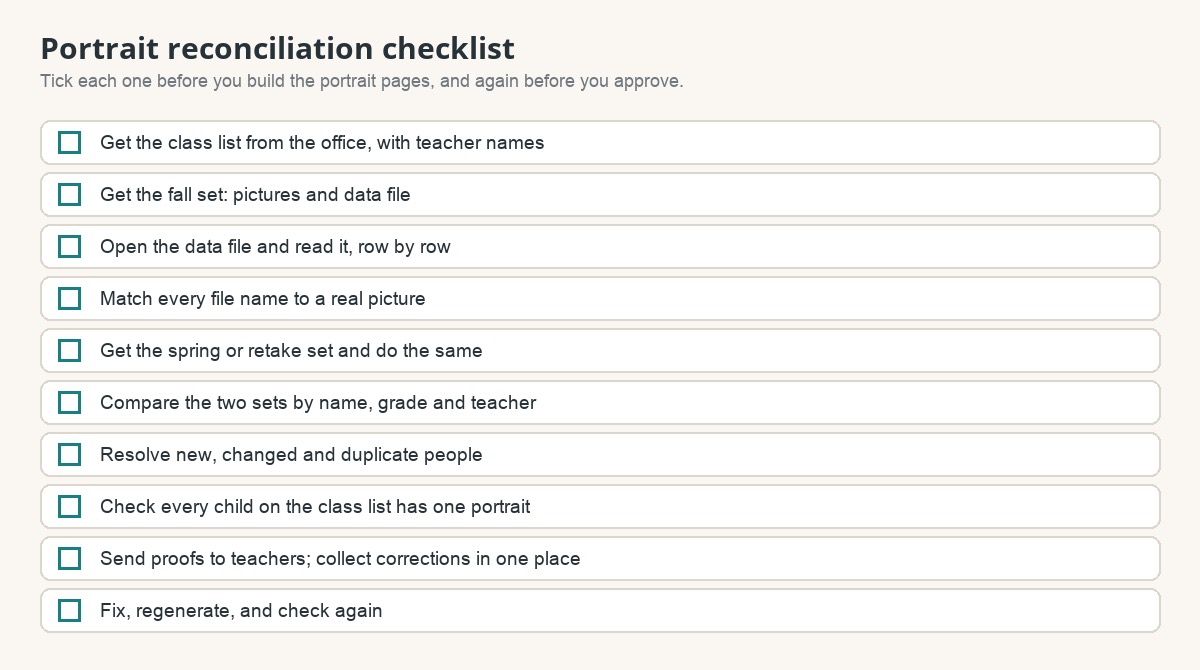
- Read the data file before you build anything, row by row in a spreadsheet.
- Check names against the class list, not against the picture.
- Check that every picture file named in the data file matches a real picture. If a name does not match, the picture cannot be found.
- Compare your classes with the photographer's list for a similar class name, a missing class or a class with no portraits.
How do I check a second set before I use it?
A short check before you combine two sets saves rework.
- Do not compare by file name. A second shoot often reuses numbering. Compare by name, grade and teacher.
- Keep one portrait per person. If a child is in both sets, decide which photo wins.
- Check the class list last. Anyone on the class list who is in neither set needs a portrait, from a make-up day or from a photo your school can supply.
- Tell teachers what changed, so their class check is on the updated page.
What do I do this week?
- ☐ Ask the office for the picture-day date and the photographer's contact.
- ☐ Ask the photographer for both parts, the pictures and the data file.
- ☐ Make a restricted folder for portrait files.
- ☐ Get the class list with teacher names.
- ☐ Name who will check the data file, and who will send proofs to teachers.
How does this work at a Rethink school?
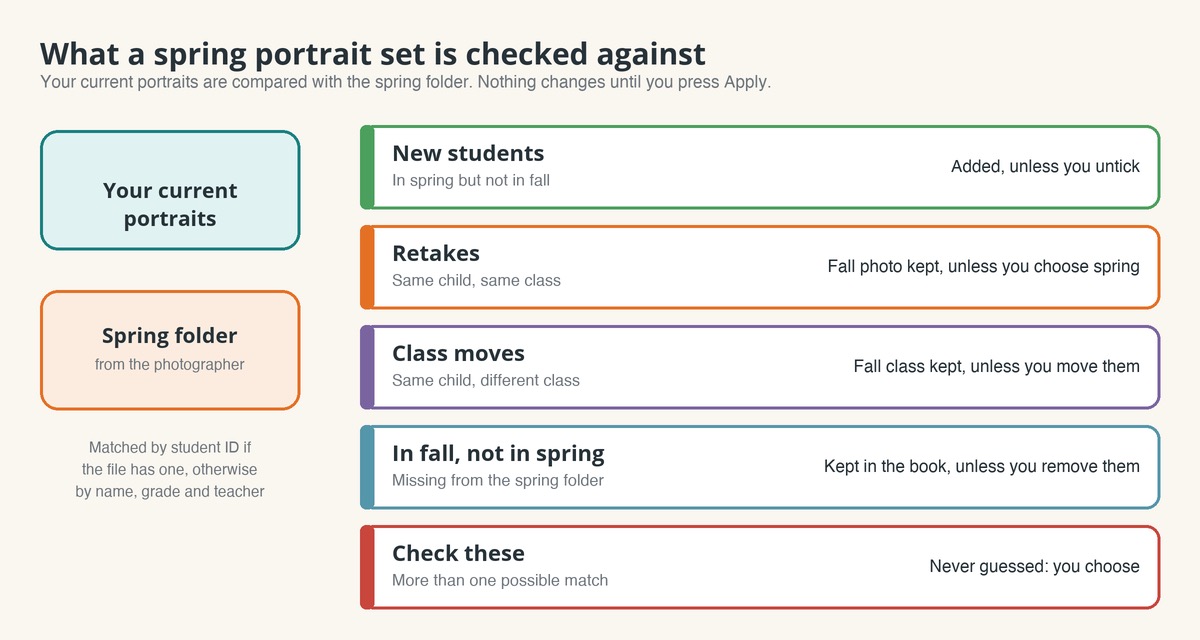
Rethink reads portraits in the standard PSPA format from any school photographer, so you can keep your picture-day photographer. For a spring set, choose Import spring portraits on the Portraits page, next to Rescan, and paste the link to the spring folder. We compare it with the portraits you already have and show you what is different. Nothing changes until you press Apply. Your choices are saved as you make them, so you can leave and come back.
The review sorts every difference into a group, with the usual choice already selected:
- New students. In spring but not in fall. They are added unless you untick them.
- Retakes. The same child in the same class in both sets. Your fall photo is kept unless you choose the spring one, child by child or for all.
- Class moves. The same child in a different class. Your fall class is kept unless you move them. Orders families have already placed keep the class the family chose.
- In fall, not in spring. These children stay in the book unless you remove them. A removed child can be put back later.
- Check these. More than one possible match, so we do not guess. You choose for each child.
After you apply, regenerate your portrait pages to see the changes. Pages for classes the import changed need approving again, so ask those teachers to check names and classes once more. An import never touches a book that has already gone to print. Get a quote and a sample
What if a child's name is wrong in the data file?
Fix it at the source, not on the page, and rebuild. Then ask the teacher to check again. More than one round is normal.
What about children who missed picture day?
Ask the office for a make-up day, then add that set the same way you added the others. Our page on a child missing from the yearbook lists other reasons it happens.
Their art on the cover.
Their year inside.
Every child is in the shared school pages of a Rethink yearbook, and families who choose personalization get pages built around their own child’s class and grade.